Tracking Work Times With Spreadsheet Editor
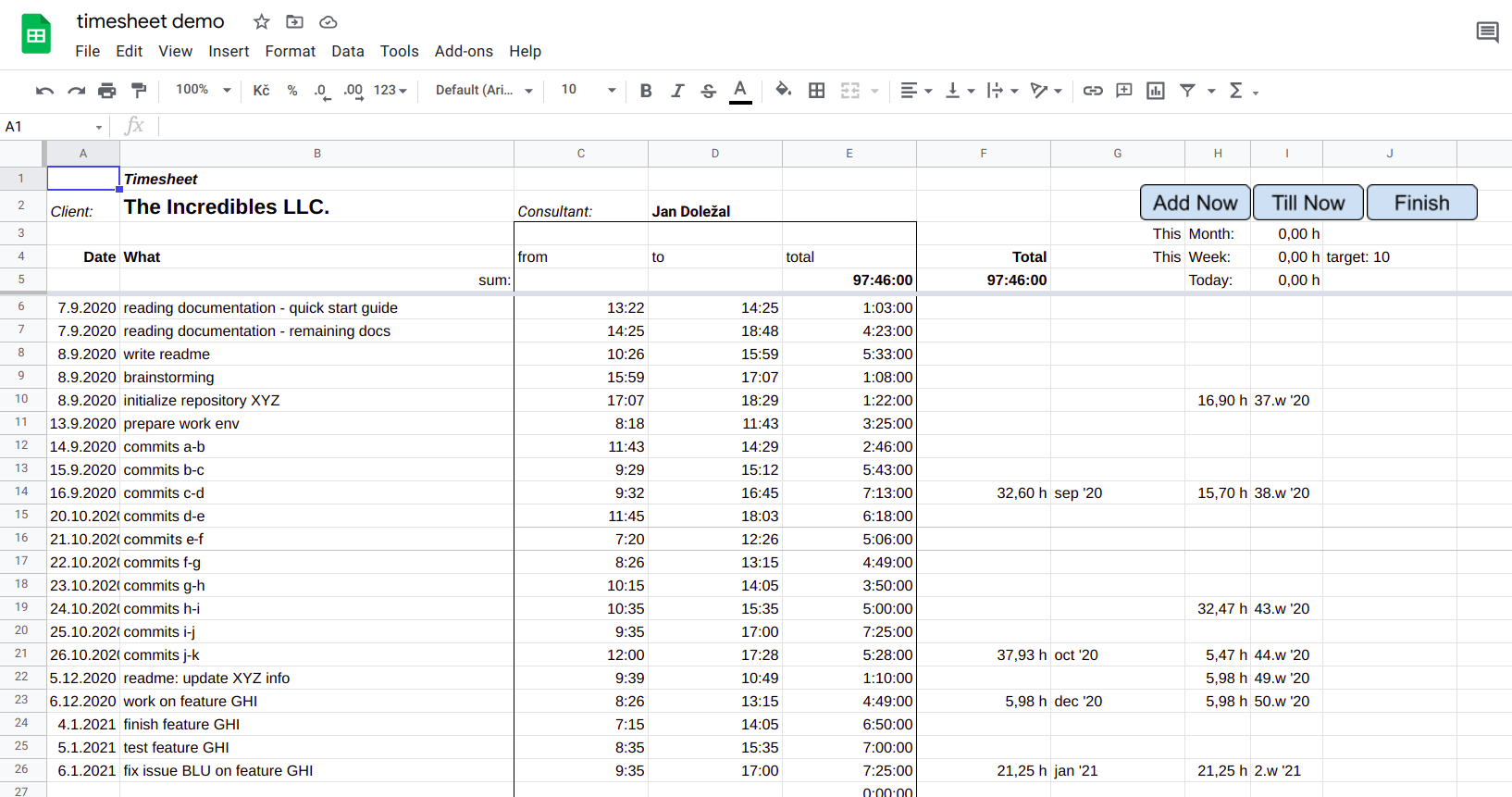
As a freelancer I wanted to build a tool to easily track my work hours so that I can charge the client appropriately. The spreadsheets.google.com looks like the most straightforward tool to achieve such a goal. It is possible to fill in formulas using rich built-in functions, create graphs with a few clicks and further to add custom actions and functions using the Apps Script that is based on JavaScript. Take a look at the demo and don’t forget to explore the ‘graphs’ tab.
Contents
Demo and this blog post show examples of:
- how to set up the tracking of work times for your own purposes
- apps script functions
- cell formulas
- conditional formatting
- charts above data produced with cell formulas
Setting up your playground
- copy the demo to your drive
- File -> Make a copy -> OK
- now your editable copy should be opened (if not, open it up from your drive.google.com)
- open Script editor to make the buttons in the top right corner work
- Tools -> Script editor
- name your project e.g.
TimeSheetGoodiesand create a File and name it e.g.TimeInsertionHandlers.gs - insert the following snippet to the new
.gsfile:
function findEmptyRow() {
  var currentSheet = SpreadsheetApp.getActiveSpreadsheet().getActiveSheet();
  var currentSheetValues = currentSheet.getDataRange().getDisplayValues();

  for(var i = currentSheet.getFrozenRows(); i < currentSheetValues.length; ++i) {
    if (currentSheetValues[i][0] === '')
      return i;
  }
}

function pad(num, size) {
  var s = num+"";
  while (s.length < size) s = "0" + s;
  return s;
}

function formatDayMonthYear(date) {
  return ''+date.getDate()+'.'+(date.getMonth()+1)+'.'+date.getFullYear();
}

function formatHoursMinutes(date) {
  return ''+pad(date.getHours(),2)+':'+pad(date.getMinutes(),2);
}

function addNowNew() {
  var currentSheet = SpreadsheetApp.getActiveSpreadsheet().getActiveSheet();
  var currentSheetValues = currentSheet.getDataRange().getDisplayValues();

  var rowIdx = findEmptyRow();
  if(rowIdx === null)
    return;

  var now = new Date();
  currentSheet.getRange(rowIdx+1,1).setValue(formatDayMonthYear(now));
  currentSheet.getRange(rowIdx+1,3).setValue(formatHoursMinutes(now));
}

function tillNowNew() {
  var currentSheet = SpreadsheetApp.getActiveSpreadsheet().getActiveSheet();
  var currentSheetValues = currentSheet.getDataRange().getDisplayValues();


  var rowIdx = findEmptyRow();
  if(rowIdx === null)
    return;

  var now = new Date();
  currentSheet.getRange(rowIdx+1,1).setValue(formatDayMonthYear(now));
  currentSheet.getRange(rowIdx+1,4).setValue(formatHoursMinutes(now));
}

function endLast() {
  var currentSheet = SpreadsheetApp.getActiveSpreadsheet().getActiveSheet();
  var currentSheetValues = currentSheet.getDataRange().getDisplayValues();


  var rowIdx = findEmptyRow();
  if(rowIdx === null)
    return;
  rowIdx--;

  var now = new Date();
  currentSheet.getRange(rowIdx+1,4).setValue(formatHoursMinutes(now));
}
Now you are all set to play around or just use the timesheet for your needs!
Note: after clicking on one of the top-right corner buttons for the first time, there is necessary to allow the apps-script to access your spreadsheets: In Google Chrome [Authorization Required dialog pops up -> Continue -> {Select your account} -> Advanced -> Go to XXXXX (unsafe) -> Allow]
Features Listing and Brief Explanation
Filling time and date with click on a button
The demo contains three buttons:
- When starting new job, “Add Now” finds first empty row and inserts current “Date” and “from” time.
- If one forgets to click “Add Now” and the job was just finished, there is “Till Now” button that finds first empty row and inserts current “Date” and “to” time. The “from” column must be then filled manually.
- The “Finish” button finds last non-empty line and overwrites the cell of “to” column with the current time. This action complements “Add Now” when the job is done.
To represent an action button we used the drawing (Insert -> Drawing).
Click with right mouse button to the action button in the demo, three dots appear on its right side and by clicking these with left mouse button the context menu appears with one of the options being Assign a script.
In the dialog that appears we can type down name of a function to be invoked after the drawing/button was clicked on by the user. But first we need to define such a script function. To do that, let’s open up a script editor (Tools -> Script editor).
Implementing Functionality of the Button “Add Now”
Note: If you don’t feel like jumping into coding right away, you can skip to this section, where we continue with using formulas within single cells. You can get back here later.
Note: There are broadly used Apps Script built-in functions in the following code snippets. To fully understand the snippets it is necessary to refer to the built-ins in the developers reference. As an exercise, try to find there for example function
getActiveSheet()which is part of the classSpreadsheetApp.The most interesting parts of each function definition in the reference manual are
- 1) what the function is doing
- 2) what parameters does it take if any
- 3) what does the function return if anything
Take a look at this snippet:
function addNowNew() {
  var currentSheet = SpreadsheetApp.getActiveSpreadsheet().getActiveSheet();
  var currentSheetValues = currentSheet.getDataRange().getDisplayValues();

  var rowIdx = findEmptyRow();
  if(rowIdx === null)
    return;

  var now = new Date();
  currentSheet.getRange(rowIdx+1,1).setValue(formatDayMonthYear(now));
  currentSheet.getRange(rowIdx+1,3).setValue(formatHoursMinutes(now));
}
First we find next empty row. We define the row as empty if the cell in its first column is empty, that is the date is not filled in our case. (See the line if (currentSheetValues[i][0] === '') in the function findEmptyRow()):
function findEmptyRow() {
  var currentSheet = SpreadsheetApp.getActiveSpreadsheet().getActiveSheet();
  var currentSheetValues = currentSheet.getDataRange().getDisplayValues();

  for(var i = currentSheet.getFrozenRows(); i < currentSheetValues.length; ++i) {
    if (currentSheetValues[i][0] === '')
      return i;
  }
}
Now we store current time to the variable now.
We format current time with custom formating function formatDayMonthYear(now) to get the text date string and store it to the first column of empty line we found.
function formatDayMonthYear(date) {
  return ''+date.getDate()+'.'+(date.getMonth()+1)+'.'+date.getFullYear();
}
Similarly for the hours and minutes in the third column.
function formatHoursMinutes(date) {
  return ''+pad(date.getHours(),2)+':'+pad(date.getMinutes(),2);
}
The pad function adds leading zeros, if needed.
function pad(num, size) {
  var s = num+"";
  while (s.length < size) s = "0" + s;
  return s;
}
Implementing Functionality of the Button “Till Now”
Same as “Add Now”, except for the fourth column is being filled instead of third.
function tillNowNew() {
  var currentSheet = SpreadsheetApp.getActiveSpreadsheet().getActiveSheet();
  var currentSheetValues = currentSheet.getDataRange().getDisplayValues();


  var rowIdx = findEmptyRow();
  if(rowIdx === null)
    return;

  var now = new Date();
  currentSheet.getRange(rowIdx+1,1).setValue(formatDayMonthYear(now));
  currentSheet.getRange(rowIdx+1,4).setValue(formatHoursMinutes(now));
}
Implementing Functionality of the Button “Finish”
Find empty row and go to the previous one rowIdx--;, i.e. to the last filled row. Fill the fourth column “to” with the current time.
function endLast() {
  var currentSheet = SpreadsheetApp.getActiveSpreadsheet().getActiveSheet();
  var currentSheetValues = currentSheet.getDataRange().getDisplayValues();


  var rowIdx = findEmptyRow();
  if(rowIdx === null)
    return;
  rowIdx--;

  var now = new Date();
  currentSheet.getRange(rowIdx+1,4).setValue(formatHoursMinutes(now));
}
Filling “total” column
Count “total” time as difference of “to” (D*) and “from” (C*) fields.
=IF(D6-C6 > 0; D6-C6; 0)
We also add a condition that the difference must be positive. Otherwise we would be getting temporary negative values on start of new job until it was finished.
Similarly the condition could be extended to apply only when the “from” field is filled.
Overview of recently spent time
Today
=SUMIF($A$6:$A; TODAY(); $E$6:$E) * 24
If the date in column “A” equals to the today’s date, add value in column “E” on the same row to the total sum displayed in this cell. Multiply by 24 to convert days to hours.
Check the SUMIF documentation.
Note: the dollar $ sign may be placed in front of the column letter or in front of the row number. When you are filling the formulas to other cells, the character prefixed with the $ stays fixed. If both, the letter and the number, are prefixed with $, the referenced cell typically contains constant value.
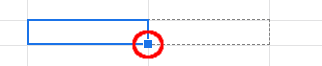
Note in the note: filling may be quickly performed by selecting a cell with formula and grabbing the square in the cell’s bottom-right corner with mouse. Pulling in desired direction selects area to be filled and release of the left mouse button finishes the fill.
This Month
=SUMIFS(
    $E$6:$E;
    $A$6:$A;
    CONCATENATE(">="; TEXT(DATE(YEAR(TODAY()); MONTH(TODAY()); 1);"d.m.yyyy"));
    $A$6:$A;
    CONCATENATE("<="; TEXT(EOMONTH(TODAY();0);"d.m.yyyy"))
) * 24
Sum values in column “E” on two conditions:
- value in column “A” on the same row is greater than first day of the current month
- value in column “A” on the same row is less than last day of the current month
In place of CONCATENATE would be in simple cases just the string literal (e.g. ">=18.9.2021").
But we want the value to dynamically update depending on what date it is today.
TODAY() function returns such a dynamic value, result of this function is shuffled around with other functions …
check google’s documentation for details of YEAR, MONTH, DATE, EOMONTH, so you can figure out what the snippet is doing
… and finaly it is converted to TEXT(). CONCATENATE then only merges the texts together as it was mere string literal and passes it as a condition to SUMIFS.
This Week
=SUMIFS(
    $E$6:$E;
    $A$6:$A;
    CONCATENATE(">="; TEXT(DATE(YEAR(TODAY()); MONTH(TODAY()); DAY(TODAY())-WEEKDAY(TODAY(); 3));"d.m.yyyy"));
    $A$6:$A;
    CONCATENATE("<="; TEXT(DATE(YEAR(TODAY()); MONTH(TODAY()); DAY(TODAY())+(7-WEEKDAY(TODAY(); 2)));"d.m.yyyy"))
) * 24
Same principle as the “This Month” function.
Totals for each week/month
Identify week {column I}
=IF(
    OR(
        ISBLANK(A10);
        WEEKNUM(A10)=WEEKNUM(A11)
    );
    "";
    CONCATENATE(
        WEEKNUM(A10);".w '";TEXT(A10;"yy")
    )
)
If the week number of the record on next line is different, we know this is the last record for the week, so we fill its number along with the year which this week belongs to.
Similarly we can detect the last record for the month and fill its description in column G.
Assign number of hours spent in identified week {column H}
=IF(
    I14="";
    "";
    SUMIFS(
        $E$6:$E;
        $A$6:$A;
        CONCATENATE(">="; TEXT(DATE(YEAR(A14); MONTH(A14); DAY(A14)-WEEKDAY(A14; 3));"d.m.yyyy"));
        $A$6:$A;
        CONCATENATE("<="; TEXT(DATE(YEAR(A14); MONTH(A14); DAY(A14)+(7-WEEKDAY(A14; 2)));"d.m.yyyy"))
    ) * 24
)
If this is considered the last record of the week sum all the records that fits in the range of this week’s dates (cf. SUMIFS in the “This Month” section).
Example of conditional formating
Let’s suppose we can’t multitask so the times of individual records should not overlap. If we for example use ‘Till Now’ button and then fill the ‘from’ field manually, we could mistakenly insert ‘from’ time that would overlap with the previous record. Let’s add reddish background to such ‘from’ field fulfilling afformentioned condition.
- click on the first field to be formatted (C7 in the demo)
- open Format -> Conditional formatting
- let’s add Custom formula as a formatting condition
=AND($C7<$D6;$A6=$A7)- if date of this and previous rows are equal AND ‘from’ of this record begins earlier than ‘to’ of previous record ends
- set required Formatting style when the condition is fulfilled
- to apply to the whole column write into Apply to range
C7:C
Charts
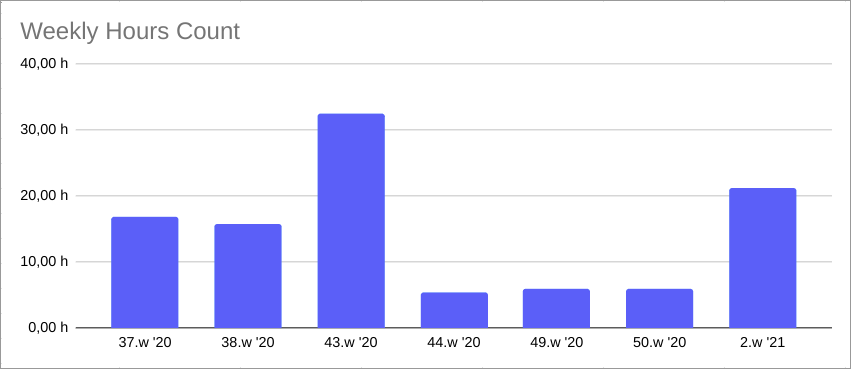
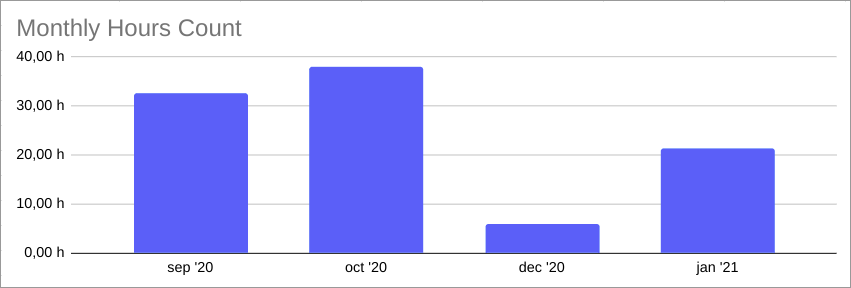
Now that we prepared weekly data in F and G columns and monthly data in H and I columns, it is few clicks away to plot the data to see trends:
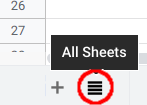
Another interesting chart is histogram of all 24 hours to see when you work the most. The implementation is not perfect since it does not join data for one day, so if there are five jobs finished in between 12:00 and 13:00 there will be counted five units for that hour. See hidden sheet “__” for formulas that are source of data for this chart.
Unhide the sheet here:
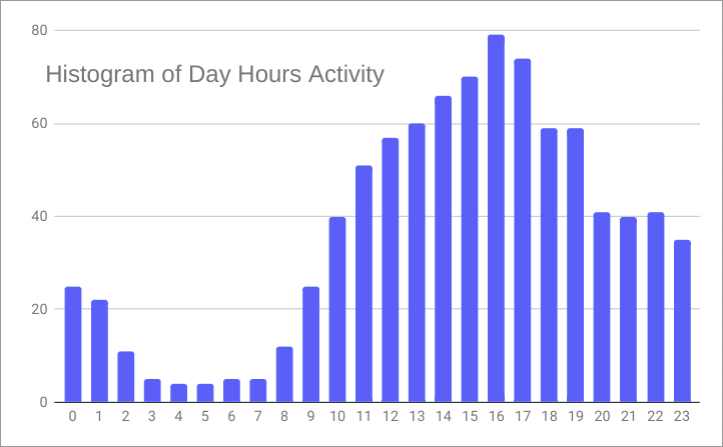
Seeing all those night hours might potentialy lead you to limit all these unhealthy night shifts ;)